Best Blogger Showcase

by
Blogger logoTime to highlight some of my Blogger Tips Pro reader's blogs that I've taken a look at and have found to be both great uses of Blogger that are also using some of the techniques highlighted. These bloggers haven't asked me specifically to showcase or critique their blogs. Nevertheless, every time someone posts a comment anywhere on Blogger Tips Pro, I take a look at their profile and blog link to see what kind of blog they've created. Sometimes my own inspiration comes from scanning through other's blogs.

My Blogger Showcase

Here are three that I've found to be great Blogger examples (in no specific order)

Blogger template for Oahu Scuba Diving


Oahu Scuba Diving  - this is a great use of Blogger to highlight a business. Many of the elements presented here are incorporated into an intriguing combination that easily shows the right information, focused photo usage and customization of the standard, out-of-the-box 'Picture Window' Blogger template! 

Using Google Web Fonts within Blogger

by
Adding Google web fonts to Blogger
Creative Commons - fontfont
Want to really spice up your Blogger blog? How about using a little more stylized font for your posts? If you haven't seen them before, Google Web Fonts are a great free alternative to the standard, out-of-the box web fonts you normally get with any standard HTML website including Blogger.

Choosing a Google Font

Google Web Fonts are really easy to install into your template and only take a few steps to get there. What most people don't realize is that they are available directly within Blogger. The first step is to jump into the Template Designer using the 'Customize' button:

Blog Traffic - How I Increased My Traffic by 10x

by
How to drive stronger blog traffic to your site
BloggerTipsPro.com daily blog traffic
It has been a full year since I launched BloggerTipsPro.com as my Blogger help site after my initial strategy in January 2012 was first developed. I've been using Blogger since 2005 and have come to really enjoy the flexibility of the platform for various types of blogs.

I know that many prefer Wordpress over Blogger but I still think having Google host my platform with more open customization vs. using custom hosting is an easier option.

That said, the blog traffic results for this site after one year are astounding! This being the 21st post in one year seems quite small overall - in fact, that is only averaging about 1.8 posts a month.  Yet, this blog is dominating Google results for many keyword phrases surrounding Blogger customization.

How to Add PowerPoint to Blogger - The Definitive Guide

by
One of the most asked Blogger questions on forums and help sites is 'How do I add a PowerPoint presentation within Blogger?'  It surprises me that many of the answers talk about multiple conversion techniques such as to Adobe PDF or to bitmap files to embed as pictures. Also, there are multiple slide sharing sites such as Slideshare.net, Scribd.com and Docstoc.com that can be used as upload sites to host your presentation and then share publicly.

Though these options are valid, the best option is to use a Microsoft tool since the level of support for the presentation view will be the highest. This is actually a very easy option and allows you to keep your presentation in the .ppt or .pptx formats.

Using Microsoft OneDrive for PowerPoint

What you may not have realized is that Microsoft's Live products - one of which is OneDrive, allows you to upload your PowerPoint presentations, edit them in place and then embed them into any web site with a viewer. Plus, OneDrive is free cloud storage with an initial limit of 5GB which should handle most PowerPoint presentations. You can always start paying for more storage if you need it.

Setting up a Microsoft Live account with OneDrive is easy to do - if you have a Hotmail account you may already have one. Just go to the Microsoft OneDrive Signup page to start and create your account. Note the message I highlighted if you do not have a Hotmail or Live account already:
Microsoft Skydrive login page


Hide the Blogger Sidebar - Quick Tip

by
Hide the Blogger Sidebar on a Static Page
Many times when you want a static home page you don't want to see the sidebar widgets. You probably noticed that on my test site for the Static Home Page I was able to hide the sidebar that you normally see on you layout in the blog posting page. Removing this is a simple trick and just requires some basic CSS and Blogger template code to adjust. The key to doing this is to simply use CSS to hide, or, display:none on your sidebars and then adjust the width of your page to fit your design needs.

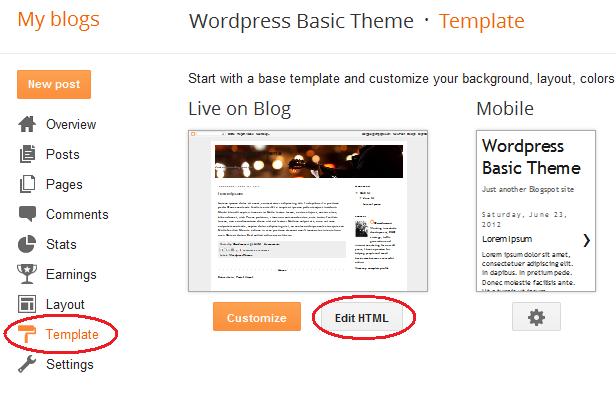
First step is to just into your Blogger template editor and then choose the 'Edit HTML' button like this:

Edit the HTML of your Blogger template
Click the 'Proceed' button to jump into your template. You don't have to worry about 'Expand Widget Templates' here because we're only working within the CSS section. Seach for the part of your template that has the keyword ]]></b:skin> like this:


You can see the section I've highlighted in my circled region - plus, I've shown about how far down in the template you need to go to find it.

Add a Slider to Blogger

by
APRIL 2013 UPDATE!! Serveral readers have discovered that part of this tutorial does not work for domains other than the standard Blogspot.com domains. There is a fix here, however!! If you have a custom domain you will need to follow this tutorial - but also the section called 'Addendum 1' at the bottom of this post in order for the slider to work correctly.

Life can get pretty darn busy at this time of year. I had to take some time off posting just to get my grad school work done as well as my job. There's a ton of new tutorials I have in my back pocket but just haven't had time yet to do the work. But, my paper is done for school and I'm now relaxing in a snow storming weekend.

What I didn't expect was that I would be spending hours trying to find a good image slider for Blogger that didn't run into weird problems or wasn't too complex to implement. Image sliders are very cool but are implemented in so many different ways - typically in Flash or Javascript. In this case I had to work through about four different free sliders to find one I liked or that worked right. Blogger does have a Slideshow gadget, but it doesn't have any real customizable features.

Let's get started. The Image Slider template I chose is from a company called Menucool.com and offers a free slider framework. You can view a sample of it in action by clicking on the image in the upper left of this post. The part that sold me on it was the fact that it didn't require JQuery script code in order for it to be implemented. That's good for us because it reduces the load time for your blog and is easier to install (note that easier is relative here - it is still a bit of a trick to get it setup correctly).

Uploading and Installing the Main Script

The main Javascript code for Menucool requires you to install some javascript code somewhere. Well, as you know Blogger doesn't have a place to install a file. You could extract the script and embed it into your template. But, I like to add it to Google Sites as a file then reference it. Your first step is to go to the Menucool.com Javascript Slider page. From there scroll down a bit to download the image slider code. All we want right now is the main Javascript file - click on the Download button:

Menucool javascript for Blogger image slider

Add a Background to a Blogger Post

by
Sometimes spicing up your Blogger posts with image manipulation can be a good thing. Images are a core part of the blogging experience and having some simple tools can make a bland post look great. I wanted to quickly show how you can add a simple near-transparent background to a single Blogger post.

Free Online Image Tool

Adding a background image is really quite simple. Some have tried using many of the CSS transparency tricks to do this but that typically runs into problems with different browsers and versions. The best way is to just find an image, scale it to the right size and then lighten it up for the illusion of a transparency.

Ok, I happened to stumble into a free online tool called LunaPic that allows you to either capture an image online or upload an image while giving you basic image editing features. You could certainly use another, more sophisticated tool but I thought this gives the basic user the functions needed.

There are really only two things you'll want to do with your image editing tool - scale the image down to close to your blog post window size and lighten or brighten the image so it looks washed out - or, gives it a transparency feel.

So, I'll first apologize for the LunaPic interface - it really is pretty bad. However, I'm going to add a background to this post for the example. First, go to the free LunaPic Editor. Here's the main screen - choose the 'Browse...' button to find an image from your disk:

Edit Images for Blogger Posts